Productivity monitors are not glamorous. Nobody queues at midnight for a 27-inch IPS panel with excellent text clarity. Yet the screen you stare at eight hours a day shapes fatigue, accuracy and how much you enjoy your job. In 2026 the market splits three ways: ultrawide all-in-one layouts, sharp 4K panels for detail work, and dual-monitor setups that still beat everything for certain workflows.
We tested nine monitors over four weeks — colour-checked with a calibration probe, measured brightness and uniformity, and lived with each on a typical hybrid week of Slack, Figma, Excel, VS Code and too many video calls. Gaming performance was noted but not prioritised. This guide is for people who want their eyes to feel better at 18:00, not people chasing 360Hz.
Best overall: Dell UltraSharp U4025QW
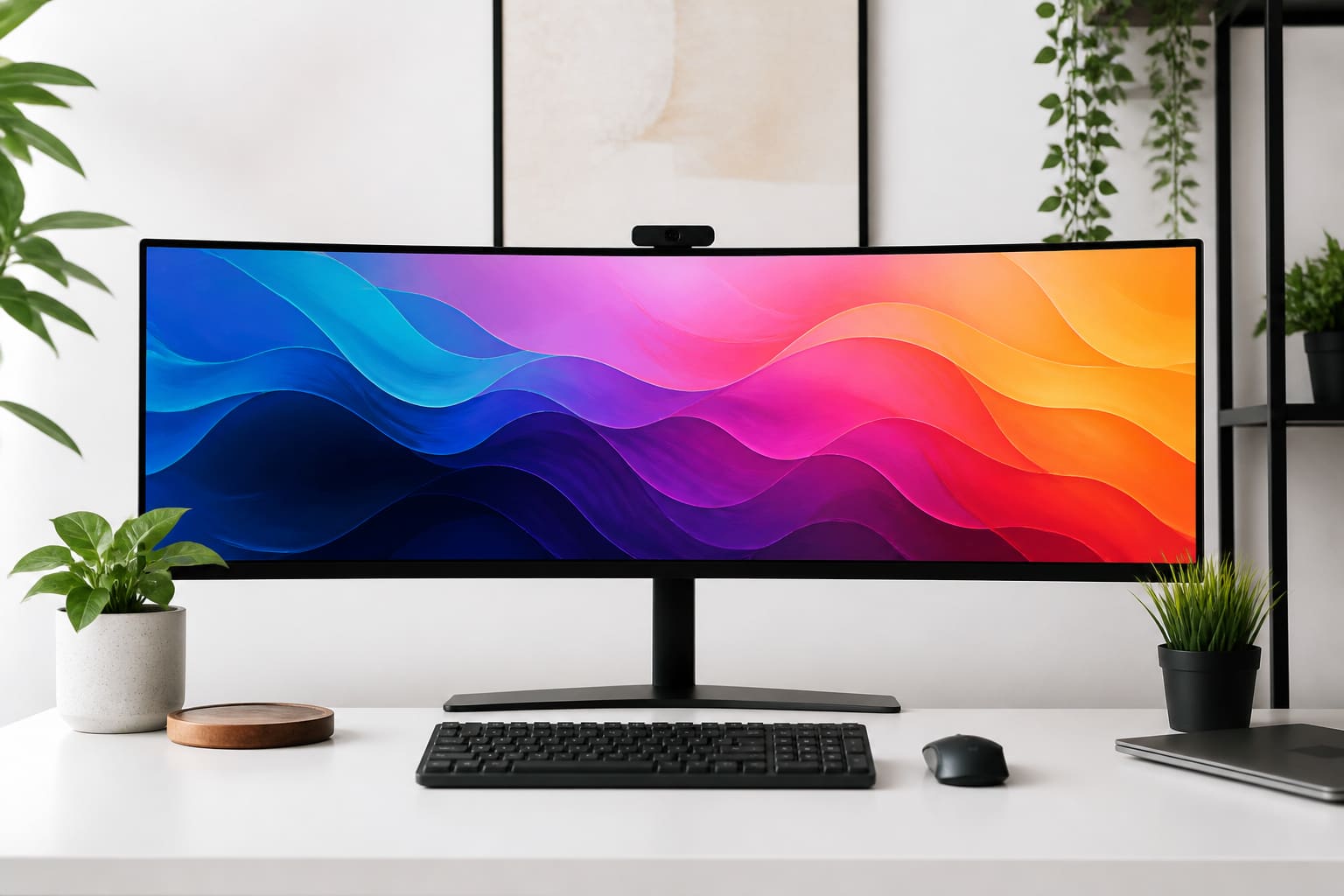
Dell’s 40-inch curved 5120×2160 panel is the single best productivity monitor we tested this year. It replaces two 27-inch screens without a bezel gap, delivers 98% DCI-P3 coverage out of the box, and includes a KVM switch that finally works reliably with a MacBook and a Windows desktop. USB-C delivers 140W charging — enough for a MacBook Pro 16 — and the ethernet passthrough saved us a dongle on the desk.
Text at 140% scaling in Windows and default scaling on macOS is crisp without squinting. The curve is gentle; if you hated early ultrawide distortion, this generation feels natural within a day. Price is the catch: expect £1,200–£1,400. If your employer buys kit, put this on the request form.

Best 4K for detail work: LG 27UP850K-W
Designers and photo editors who need pixel-perfect 4K without ultrawide distortion should look at LG’s 27UP850K-W. 27 inches keeps pixel density sharp; factory calibration report included; hardware calibration supported via LG’s software. We measured deltaE averages below 1.5 post-calibration — good enough for web and social deliverables, though proofing purists will still want a dedicated reference panel.
USB-C with 90W PD, decent built-in speakers for calls, and a stand that adjusts height, tilt and pivot. At roughly £450 it undercuts Apple Studio Display territory while being more flexible for Windows users. The matte coating reduces glare under office downlights without the grain some budget panels show.
“A bigger monitor is not productivity — more usable space without hurting your eyes is productivity.”
— Merlin Mann, productivity writer, speaking on desk ergonomics and display choice
Best budget pick: AOC Q27P3CV
Not everyone gets a four-figure monitor budget. The AOC Q27P3CV delivers 2560×1440, USB-C 65W, and an ergonomic stand for around £280. Colour gamut is merely good, not great — fine for developers, analysts and writers. We used it as a secondary vertical monitor for Slack and email and kept it after testing ended. That is the highest praise a budget panel receives.
Brightness tops out at 350 nits — adequate for indoor use, weak beside a window. No KVM, no ethernet. You are buying sensible pixels and a stand that does not wobble. For home offices funding themselves, start here and upgrade the primary later.
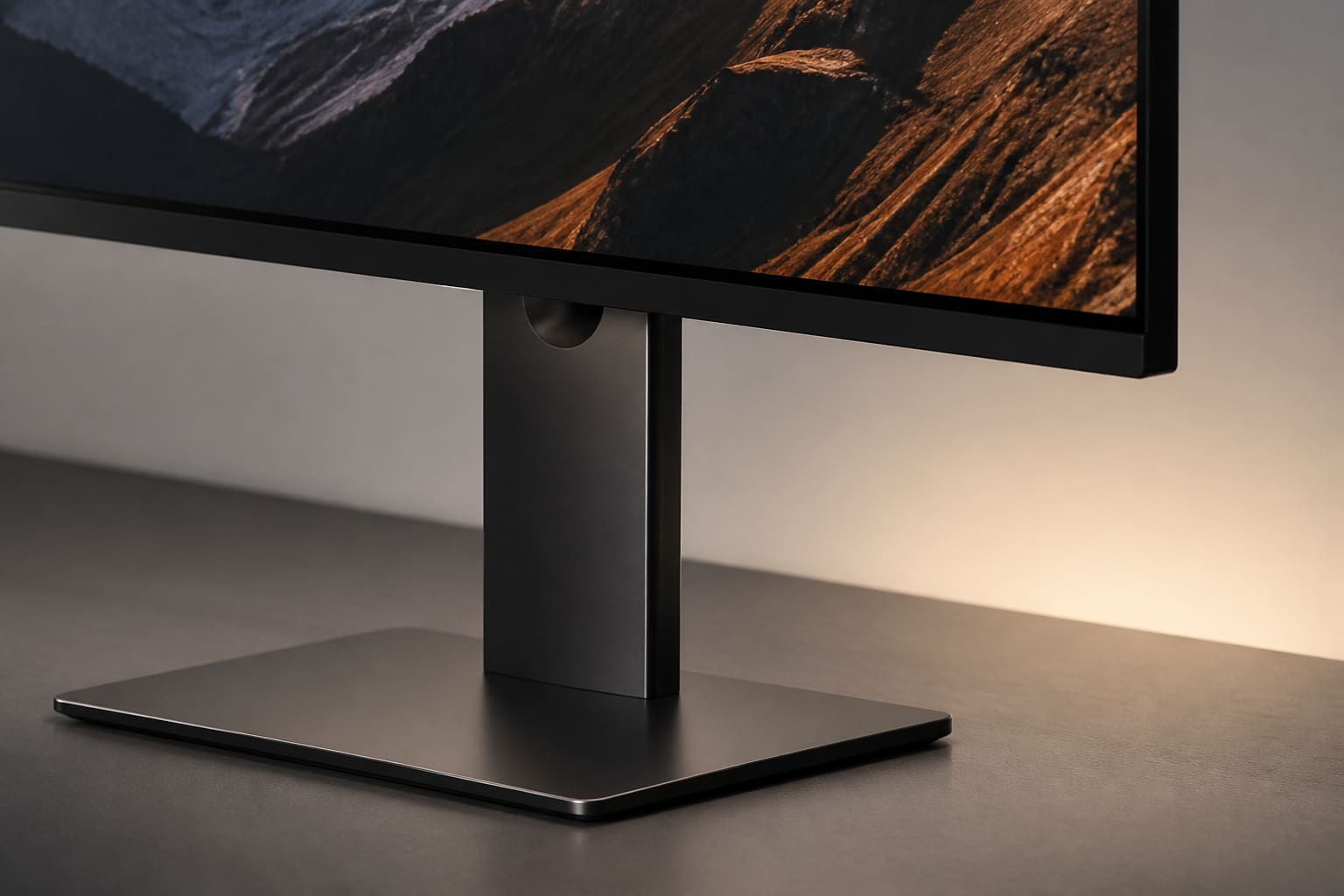
Best dual-monitor setup: two Dell U2724DE panels
Some workflows resist ultrawide. Developers who want code on a portrait screen. Traders with tickers above a main chart. Support staff with a CRM on one display and chat on another. Two Dell U2724DE 27-inch QHD monitors — with their daisy-chain USB-C hub — create a clean dual layout with one cable to the laptop. Each panel covers 98% sRGB, includes ComfortView Plus low blue light that does not look sepia-toned, and mounts on arms easily.
Total cost lands near £700–£800 for the pair — less than one premium ultrawide — with more layout flexibility. Cable management takes effort. We accept that trade.
Features that actually matter
USB-C with adequate wattage eliminates charger clutter. KVM switches matter if you toggle between work laptop and personal tower. Height adjustment beats VESA arms for simple setups. Ignore built-in webcams unless you have no alternative — they are universally mediocre. Flicker-free dimming and low blue light modes reduce eye strain more than “AI brightness” marketing ever will.
Match resolution to distance. At arm’s length, 27-inch 4K and 34-inch ultrawide QHD+ hit the sweet spot. Sit farther back and 32-inch 4K works. Too high pixel density without scaling makes text tiny; too low makes edges soft.
What we skipped — and why
Gaming-first monitors with aggressive curvature and HDR1000 badges often ship with mediocre text clarity and sRGB modes that look wrong for documents. OLED productivity panels exist — LG’s UltraFine OLED Pro is lovely — but burn-in anxiety and lower peak brightness under office lights kept them off our main recommendations. If you edit HDR video, that is a different guide.
We will update this list when USB-C 2.1 docks and 5K2K ultrawide options drop in price. For now, these picks survived the boring test that matters: would we complain about them in a team meeting? None of them made us complain. Several made us protective.
Verdict
Pros
- Ultrawide and dual options for different workflows
- USB-C hubs reduce desk cable clutter
- Budget pick that does not feel punitive
Cons
- Premium ultrawide pricing hurts solo buyers
- OLED still a compromise for static UI elements
- Gaming monitors poor value for text-heavy work
Sources
- Apple, Studio Display and display technology overview — apple.com
- Microsoft, multi-monitor setup and Windows display guidance — microsoft.com
- Notebookcheck, 2026 office monitor reviews and measurements — notebookcheck.net